Interruptions
The interruption itself is rarely the problem. It's the moment after, when you come back and have to rebuild what you were doing, why, and what came next. Don't Forget saves that for you at the moment you switch.

Free · iPhone, iPad, Mac & Apple Watch · No account needed
Sound familiar?
- “A colleague asks "got a sec?" and your train of thought leaves with them.”
- “You come back from a call and stare at the screen, trying to remember where you were.”
- “Three half-finished things are open and you're not sure which one matters most.”
Leave a bookmark without stopping to write one
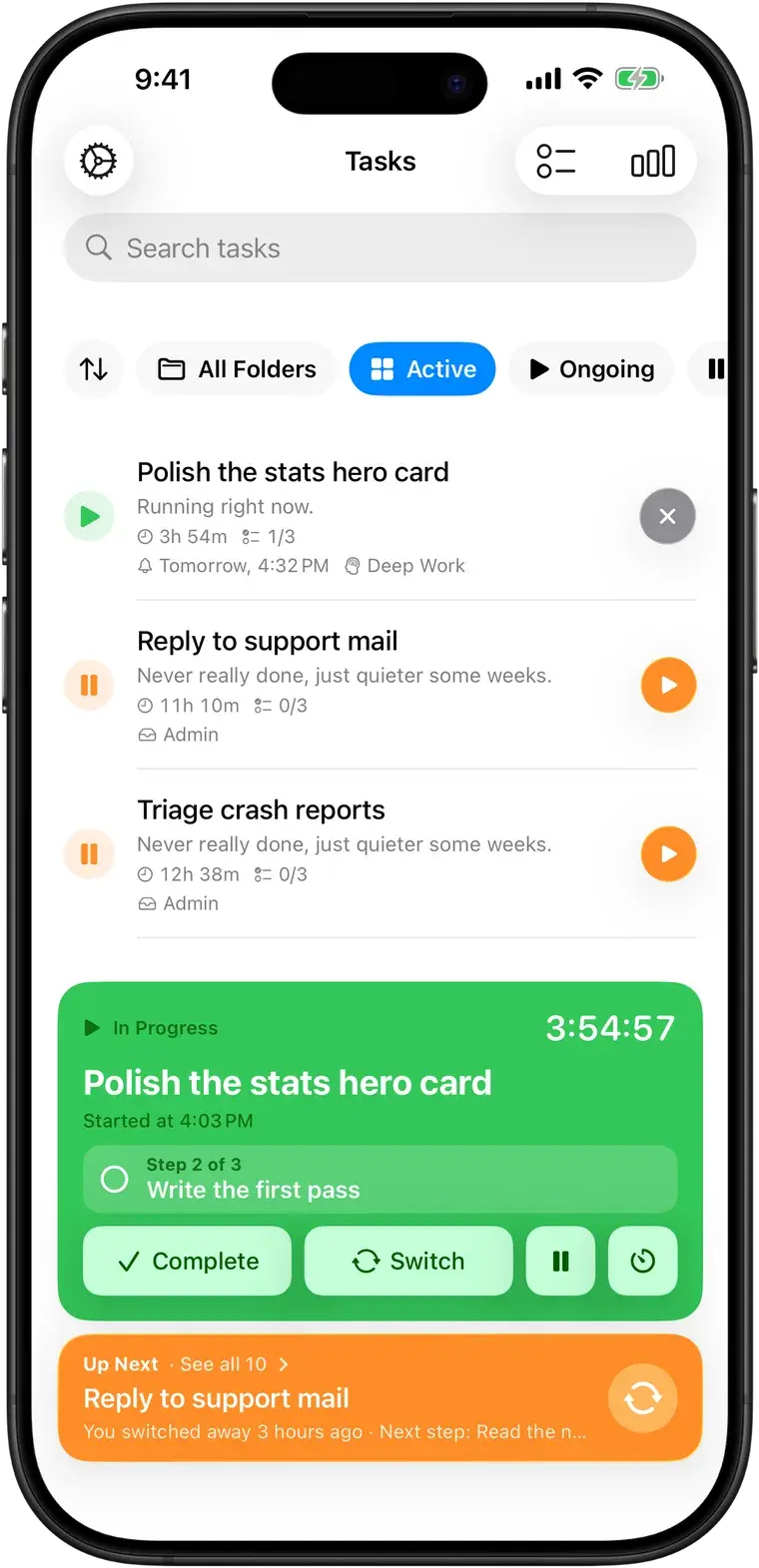
Common advice says to jot down where you stopped before switching. That works, but in the moment you rarely do it. In Don't Forget, tapping Switch is the bookmark: the task keeps its time, its steps and the step you were on.
A return path that's already there
When you're ready, Up Next shows the task you switched away from first: how long ago you left it, the time already spent and your next step. Tap Switch to This and you're back, with the timer running from where it stopped.
See how interruptions shape your day
Every session records how it ended: finished, paused or switched away. Statistics show how often you were pulled off a task, and Pro Insights point out patterns, like the tasks that keep getting set aside.
Capture without derailing
Remembered something mid-task? Add it to Up Next or plan it with a reminder and a due date, without leaving what you're doing. On iPhone you can also share text, links or images from other apps straight into a new task.
Common questions
More in the full FAQ.
How is it different from a Pomodoro timer or a to-do list?
A to-do list tells you what exists, and a Pomodoro timer tells you when to stop. Neither remembers what you were in the middle of when something interrupted you. Don't Forget is built around that moment: switching is one tap, the task you left keeps its place, and getting back is one tap too. Pomodoro is there if you want it, but it's optional.
Can I break a big task into steps?
Yes. Add steps to any task, focus on one at a time, and see how long each one really took. When you switch away, the next step is shown with the parked task, so you know exactly where to restart.
What if I walk away and forget to pause the timer?
On Mac, the timer pauses on its own when your Mac sleeps, locks or starts the screen saver. On iPhone, if you come back after a long time with the timer still running, the app asks if you were still working. You can also set when you actually stopped with "stopped at", or adjust the time by hand, so a forgotten timer doesn't skew your day.
Next time you get pulled away, you'll know where you were.
Free on iPhone, iPad, Mac and Apple Watch. No account, no subscription.